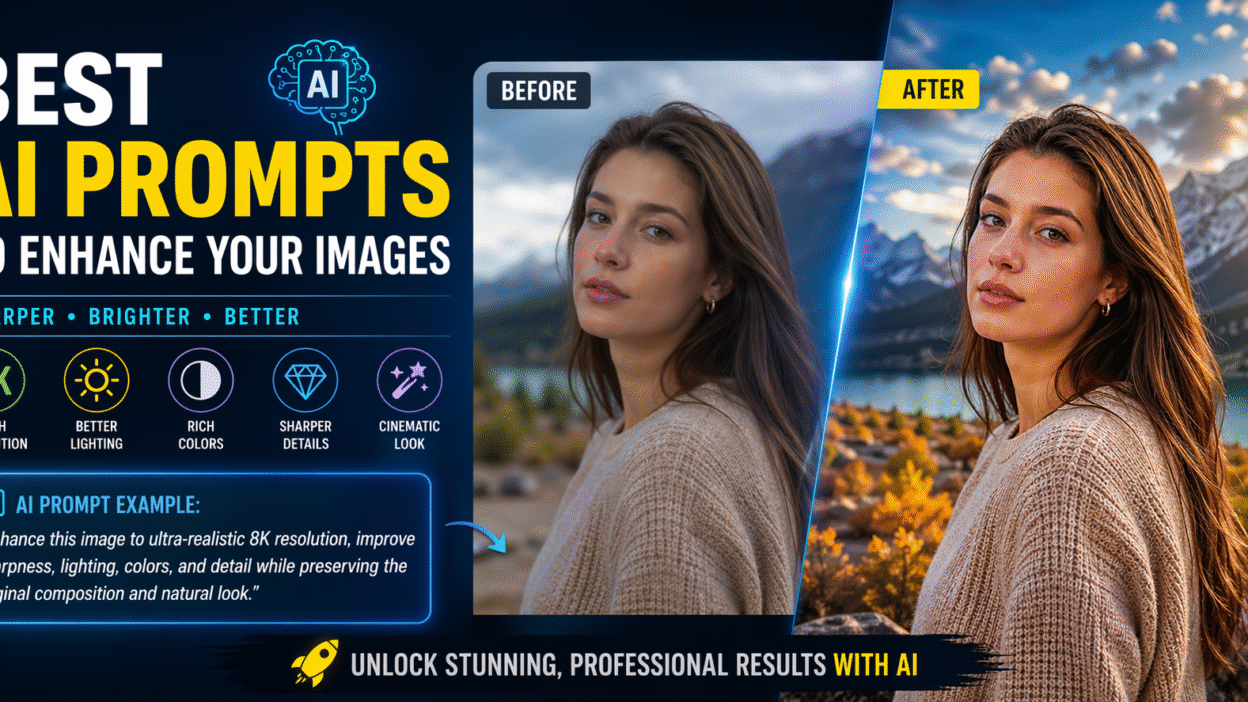
Artificial Intelligence has completely transformed how we edit and enhance images. Today, you don’t need professional editing skills or expensive software to create cinematic, ultra-HD, realistic photos. With the right AI prompts, anyone can upgrade ordinary images into professional-looking visuals within seconds.
In this guide, you’ll discover the best AI prompts to enhance images, improve clarity, lighting, colors, background effects, and achieve studio-quality results effortlessly.
Whether you’re a content creator, blogger, designer, or social media enthusiast, these prompts will help you unlock powerful visual upgrades instantly. ✨
Why AI Prompts Matter for Image Enhancement
AI tools like image enhancers and generative editors rely heavily on prompt quality. A well-written prompt tells the AI exactly what changes you want.
Strong prompts help you:
- Increase image resolution (4K / 8K)
- Improve lighting and shadows
- Add cinematic color grading
- Sharpen facial features
- Remove blur or noise
- Enhance textures and depth
- Create professional background effects
Instead of random edits, prompts give controlled, predictable, and premium results.
Best AI Prompts to Enhance Image Quality
Below are powerful prompt templates you can copy and use directly.
1. Ultra HD Resolution Enhancement Prompt
Use this when your image looks slightly blurry or low quality.
Prompt:
Enhance this image to ultra-realistic 8K resolution, improve sharpness, texture clarity, natural lighting, and preserve original details without altering facial features or composition.
Best for:
- Portrait photos
- Landscape photography
- Social media uploads
- Blog thumbnails
2. Cinematic Lighting Enhancement Prompt 🎬
Perfect for creating dramatic, professional visuals.
Prompt:
Apply cinematic lighting with soft shadows, balanced highlights, enhanced depth, and natural skin tones while keeping the original composition unchanged.
Best for:
- Instagram portraits
- Travel photography
- Lifestyle shots
3. Background Blur (DSLR Effect) Prompt
Creates a premium portrait look instantly.
Prompt:
Add shallow depth of field and soft background blur (bokeh effect) while keeping the subject sharp and realistic with natural lighting.
Best for:
- Profile pictures
- Influencer content
- Professional headshots
4. Golden Hour Effect Prompt 🌅
Adds warm sunlight tones for emotional visuals.
Prompt:
Apply warm golden hour lighting with soft sunlight glow, realistic shadows, enhanced skin tones, and cinematic atmosphere without changing facial features.
Best for:
- Outdoor portraits
- Nature photography
- Travel images
5. Face Detail Enhancement Prompt
Maintains identity while improving clarity.
Prompt:
Enhance facial details with natural skin texture, sharper eyes, improved lighting, and realistic tone correction while preserving the person’s original identity.
Best for:
- Portrait restoration
- Old photos
- Social media images
6. Remove Motion Blur Prompt
Fix shaky photos easily.
Prompt:
Remove motion blur, sharpen edges, restore fine details, and enhance clarity while maintaining natural textures and lighting.
Best for:
- Action shots
- Street photography
- Low-light photos
7. Professional Studio Look Prompt 📸
Transforms casual photos into premium portraits.
Prompt:
Convert this image into a professional studio portrait with balanced lighting, soft shadows, smooth background, and ultra-sharp subject clarity.
Best for:
- LinkedIn photos
- Portfolio images
- Branding visuals
8. Landscape Enhancement Prompt
Boosts scenery images dramatically.
Prompt:
Enhance landscape colors, increase dynamic range, improve sky detail, sharpen textures, and add cinematic depth while keeping natural realism.
Best for:
- Mountain photography
- Travel blogs
- Wallpapers
9. Instagram-Ready Enhancement Prompt
Optimized for social engagement 📱
Prompt:
Enhance colors, improve brightness and contrast, sharpen details, and apply natural skin tone correction for a clean Instagram-ready look.
Best for:
- Reels thumbnails
- Influencer posts
- Lifestyle images
10. Dreamy Soft Focus Prompt ✨
Creates aesthetic visuals instantly.
Prompt:
Add dreamy soft focus effect with gentle glow, smooth lighting transitions, and cinematic atmosphere while preserving facial identity.
Best for:
- Romantic photos
- Wedding shots
- Artistic portraits
Pro Tips for Writing Better AI Image Prompts
To get maximum results from AI tools, follow these expert techniques:
1. Be Specific
Instead of saying:
improve image quality
Say:
enhance sharpness, adjust lighting, increase contrast, and upscale to 8K resolution
2. Mention What Should NOT Change
Example:
preserve original facial features and composition
This prevents unwanted distortions.
3. Combine Multiple Enhancements
Example:
upscale to 4K resolution, add cinematic lighting, improve skin tone, and sharpen details
This produces premium results faster.
4. Use Photography Terms
AI understands photography keywords like:
- depth of field
- dynamic range
- texture clarity
- soft shadows
- cinematic color grading
These improve output accuracy significantly.
Best AI Tools That Work Great With These Prompts
These prompts perform especially well in:
- ChatGPT image editor
- Midjourney
- Leonardo AI
- Adobe Firefly
- Remini AI
- Playground AI
Each platform responds strongly to structured enhancement prompts.
Final Thoughts
AI image enhancement is no longer limited to professionals. With the right prompts, anyone can transform ordinary photos into studio-quality visuals within seconds.
Start with resolution upgrades, experiment with lighting styles, and combine cinematic effects to create eye-catching images for social media, blogs, or personal use.
The secret isn’t the software — it’s the prompt you use. 🎯